

Setting up your Smart TV for streaming: the simple guide
Have you just taken delivery of a new connected television, or do you finally want to enjoy your subscription on the big screen? Good news: setting up your Smart TV for streaming is far simpler than it looks. In a few minutes you can connect your television to Wi-Fi, install the app and sign in with your details to reach your live channels, replay and VOD. This guide walks you through it step by step, without technical jargon, so that you can start your first programme from the available channels as quickly as possible. And because Mondial TV is a 100 % legal and secure service, you watch with peace of mind, with no nasty surprises.
Whether you have an Android TV Smart TV, a television from another brand, or you go through an external box, the logic stays the same. Simply follow the steps in order and keep your username and password within reach. If you are only just getting started, our article Getting started: subscription, sign-in, app complements this guide very well.
Step 1: connect your television to Wi-Fi
Streaming needs a stable internet connection. So before anything else, check that your Smart TV is properly linked to your network. Switch the television on, open the Settings menu (often shown as a cogwheel), then go to the Network or Connection section. Choose Wi-Fi, select the name of your router from the list and enter the security key (the password printed underneath your router or on its label).
If your television is close to the router, you can also use an Ethernet cable for a wired connection, which is often smoother for high definition. Once connected, the television usually shows a small tick or the word « Connected ». You are ready for the next step. For comfortable HD viewing, a connection of around 8 to 10 Mb/s is more than enough; if several people are watching at the same time on different screens, allow a little more bandwidth.
Step 2: install the Mondial TV app
Once you are connected to the internet, open your television’s app store: the Google Play Store on Android TV models, or the App Store on Apple TV. In the search bar, type « Mondial TV », then start the installation. Within seconds the icon appears in your app grid. You can find all the compatible platforms and detailed instructions on our page devoted to the app.
If your television model does not offer the app in its store, there is no need to worry: you can perfectly well go through an external device (Android TV, Apple TV) or even use the Web TV from a browser on a PC connected to the screen. Mondial TV was designed to fit every habit: find out how to watch Mondial TV on all your screens, from the Smart TV to the smartphone, on up to five screens at the same time.
Step 3: sign in with your details
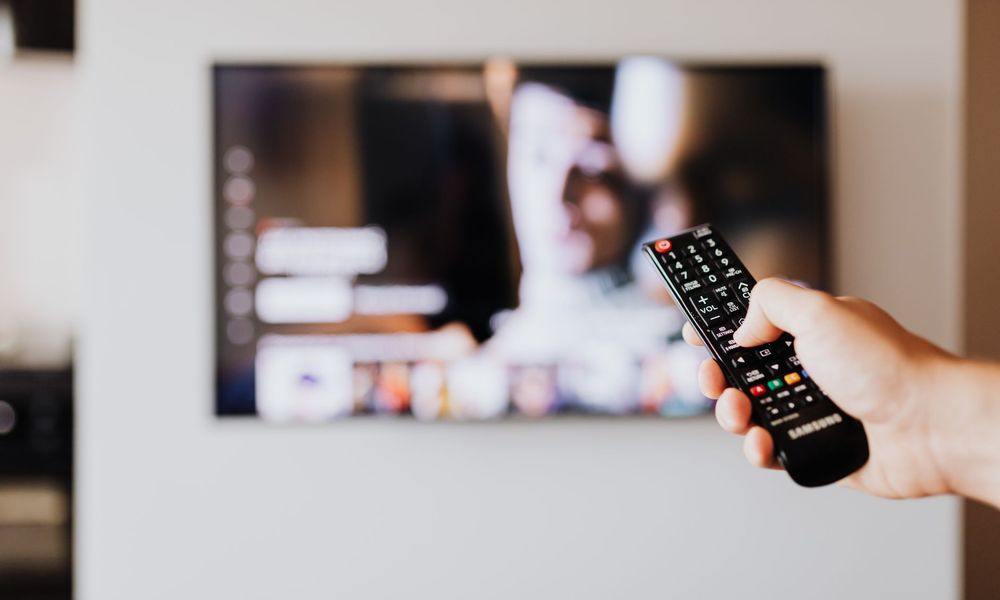
Open the app from your home screen. A sign-in form asks for your username (your email address) and your password, the ones you chose when creating your account. Enter them using the remote control, confirm, and the Mondial TV home screen appears with your channels and your content.
Do not have an account yet? This is the ideal moment to try the service. The 2-week discovery offer at €0.99 lets you explore the whole catalogue before deciding, then €9.90/month with no commitment. If you watch often, the annual subscription at €79 offers the best value over the year. All the plans are set out on the Our offers page: payment is by bank card or PayPal, entirely securely, and your account is activated immediately.
Once you are signed in on your Smart TV, your session stays open: you will not have to enter your details again every time. That way you go straight back to your programmes each time you switch on.
Step 4: choose the right picture quality
Depending on your connection and your screen, you can adjust the playback quality. In most cases automatic quality adapts on its own to your bandwidth to avoid interruptions. If you prefer to set it manually, open the player for a channel or a film, then look for the settings icon (often a cogwheel or the letters HD) to select the definition you want.
One simple tip: if the picture pauses to « buffer », drop the quality by one step while your connection settles. Conversely, if everything is smooth, leave the quality at its highest to make the most of your big screen. That way you can move effortlessly between live viewing, replay and VOD at your own pace, with the comfort of the living room.

Troubleshooting: the most common small problems
Even when properly set up, a connected television can sometimes misbehave. Here are the most useful checks, in order, before you start worrying:
- The app will not start, or freezes: close it completely then reopen it. If necessary, restart the television by unplugging it for a few seconds.
- The picture stutters or pauses: check your Wi-Fi. Move the television closer to the router, or try an Ethernet connection. Reducing the picture quality also helps temporarily.
- « Incorrect credentials »: make sure you are not mixing up upper and lower case, and check that you are indeed using the email address of your account.
- Nothing appears after signing in: check that your subscription is active and that your internet connection works in other apps.
If the problem persists, the FAQ and help area answer the most common questions, and our team can be reached through the Contact us page. You are never alone in front of your screen: we are here to help you enjoy your subscription with peace of mind.
Ready to start your first programme
There you are, all set: Wi-Fi connected, app installed, account activated and quality adjusted. All that is left is to browse the schedule, choose a live channel or a film, and settle in comfortably. The strength of Mondial TV is that it follows you everywhere: after your Smart TV, you can find the same content on mobile, tablet or set-top box, as our guide Mondial TV on all your screens explains. To go further into everyday use, the article watching your favourite channels wherever you are will give you even more ideas. Enjoy exploring, and above all: enjoy streaming that is simple, legal and commitment-free.
Also read
 Conseils & Astuces
 Autumn evenings: planning the perfect TV night with live TV, replay and films
Live TV, replay or an on-demand film? Our simple method for planning great autumn TV nights, alone, with the family…
Read the article Conseils & Astuces
 Box, HDMI stick or Android TV: which device to watch Mondial TV on
Smart TV, provider box, HDMI stick, Android TV, Apple TV or Web TV: our guide to choosing the right device…
Read the article Conseils & Astuces
 Watching your French channels on holiday, entirely legally
Holidays, work trips or a weekend away should never cut you off from your programmes. Here is how to keep…
Read the article