
Wi-Fi, Ethernet cable or powerline: keeping your streaming stable at home
The picture freezes just as the goal goes in, the film takes ages to start again, the quality drops every evening at the same time… In the vast majority of cases, it is neither the TV’s fault nor the streaming service’s, but the route the data takes between your internet router and the screen. Wi-Fi, Ethernet cable or powerline: each option has its strengths and limits. This practical guide helps you choose the right one so you can enjoy the live channels and films in your Mondial TV subscription without the stress.
Why stability matters more than speed
People often talk about connection speed, but for streaming, stability is just as important. A video stream needs a steady flow of data: if it drops suddenly, even for a few seconds, playback slows or the quality falls while the connection recovers.
For Mondial TV, the guidelines are simple: around 5 Mb/s is enough for standard definition, and 10 Mb/s is recommended for HD. Most internet packages deliver far more than that… at the router. The problem is how much is left by the time it reaches the living room, through walls and floors.

Wi-Fi: convenient but temperamental
Wi-Fi has one obvious advantage: no cables to run. It is the natural choice for smartphones and tablets, and works very well in many homes. But radio waves have their weaknesses:
- Obstacles: load-bearing walls, concrete floors, mirrors, fish tanks and metal furniture all weaken the signal considerably.
- Distance: the further you are from the router, the lower the speed.
- Interference: neighbours’ networks, a microwave oven or certain wireless devices can disrupt the connection, especially in flats.
- Sharing: every device on Wi-Fi shares the same radio bandwidth.
Choose the right frequency band
Recent routers usually broadcast on two bands. The 2.4 GHz band reaches further and passes through walls better, but it is slower and more crowded. The 5 GHz band is faster and less prone to interference, but has a shorter range. If your TV is in the same room as the router or the next room, go for 5 GHz.
Place your router wisely
A router hidden at the back of a cupboard, behind the TV or on the floor loses some of its effectiveness. If possible, put it up high, in the open and in the middle of your home. Simply moving it is sometimes enough to solve a lot of problems.
Ethernet cable: the gold standard for stability
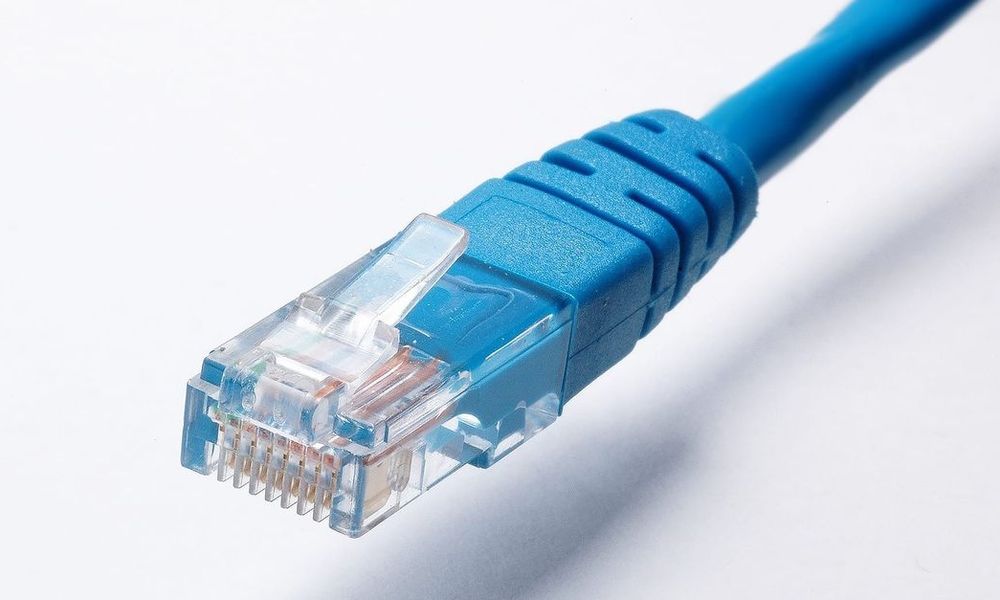
If you remember only one tip, make it this one: whenever possible, connect your TV or set-top box to the router with an Ethernet cable. A wired connection is unaffected by walls or interference and delivers a constant speed. It is the ideal solution for big screens, live matches and long film nights.
A few practical points:
- Check for a port: many smart TVs and media boxes have an Ethernet socket. Our comparison of boxes, HDMI sticks and Android TV helps you choose suitable equipment.
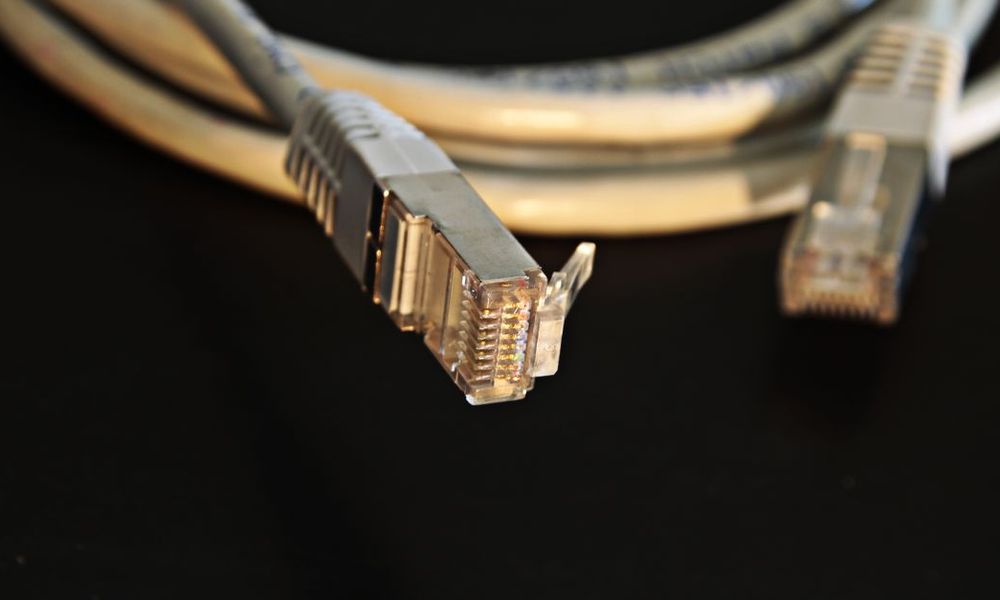
- Pick a Cat 5e or Cat 6 cable: more than enough for streaming TV, and inexpensive.
- Route it neatly: flat cables slip easily under a skirting board or rug, and adhesive trunking makes for a discreet installation.
Powerline: the clever compromise
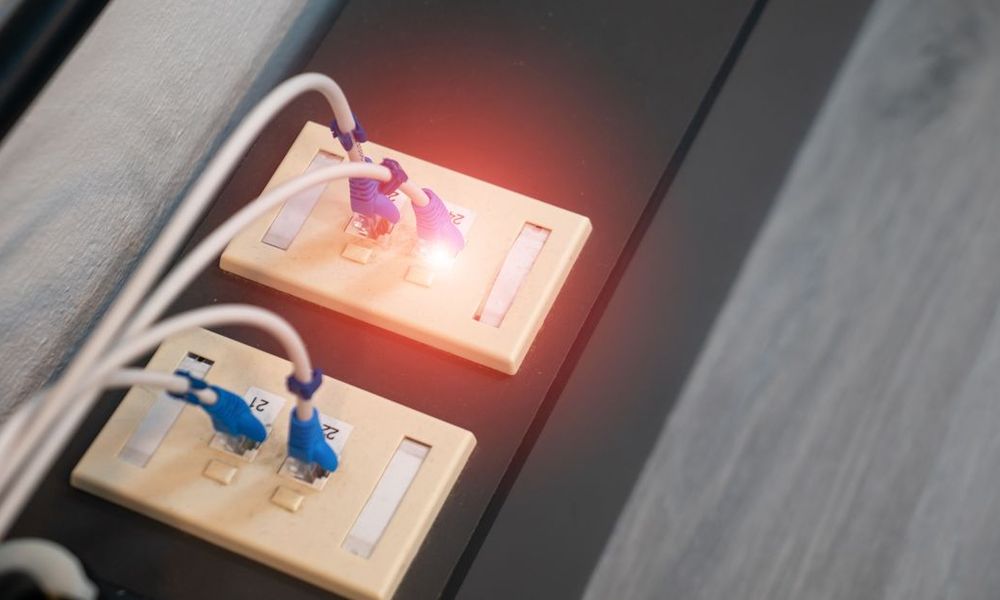
Your router is by the front door and the TV at the other end of the flat? Running a cable is not always an option. That is where powerline adapters come in. The idea: carry your internet connection through the electrical wiring of your home.
In practice, you plug one adapter into a power socket near the router, connected to it with an Ethernet cable, and a second one near the TV, also connected with a cable. The two units communicate through the electrical network. Some routers even come with this kind of equipment.
To get the best out of powerline:
- Plug the adapters directly into a wall socket, never into a power strip, especially one with surge protection.
- Stay on the same electrical circuit where possible: performance drops when the signal has to pass through the fuse box.
- Test before you commit: results depend heavily on the age and quality of the wiring.
Properly set up, powerline usually provides a more stable connection than Wi-Fi over long distances, without drilling a single hole.
Other options: extenders and mesh Wi-Fi
If neither a cable nor powerline suits you, two options can extend your Wi-Fi:
- Wi-Fi extender: placed halfway between the router and the poorly covered area, it relays the signal. Simple and affordable, it can however reduce the available speed.
- Mesh Wi-Fi system: several units spread around the home create a single, consistent network. More expensive, it is an excellent solution for large homes or houses on several floors.
Which solution for which screen?
- Living-room TV: Ethernet cable first, powerline second, 5 GHz Wi-Fi if the screen is close to the router.
- Smartphone and tablet: Wi-Fi, ideally on 5 GHz near the router.
- Computer: Wi-Fi or cable depending on where it is, to enjoy the Web TV in your browser.
A Mondial TV account can be used on up to 5 devices, and the app lets you resume a programme from one screen to another. To set up your TV properly, our guide to setting up your Smart TV for streaming complements these tips.
What to do when the connection drops
- Restart the router and the device: basic, but often effective.
- Spot the bandwidth hogs: downloads, console updates or cloud backups can saturate the connection for the length of a match.
- Test your speed in the right place: from the device that is having problems, at the times you watch TV.
For big sporting events, our article on live sport has more tips. If problems persist, check our FAQ or write to us through the contact page.
Not a subscriber yet? The 2-week discovery offer for €0.99 is the best way to test the quality at home, on your own network, before continuing at €9.90/month with no commitment, or switching to the annual plan at €79/year, which saves €39.80. All the details are on our plans page.
Also read
 Conseils & Astuces
HD and Full HD: understanding streaming picture quality and improving it at home
SD, HD, Full HD, bandwidth and TV settings: our clear guide to understanding picture quality in streaming and easily improving…
Read the article Conseils & Astuces
Autumn evenings: planning the perfect TV night with live TV, replay and films
Live TV, replay or an on-demand film? Our simple method for planning great autumn TV nights, alone, with the family…
Read the article Conseils & Astuces
Box, HDMI stick or Android TV: which device to watch Mondial TV on
Smart TV, provider box, HDMI stick, Android TV, Apple TV or Web TV: our guide to choosing the right device…
Read the article